
To redact medical record PDFs for teaching, start with an approved teaching purpose and a privacy brief, then use DocHush’s local workflow to review identifiers, apply the required removals and inspect the saved teaching copy. The final review must check both patient information and clinical meaning. Redaction alone does not establish permission to share or completion of de-identification.
A referral packet can make a useful teaching case. The difficulty is separating the clinical story from the patient’s identity: a label on the cover, a name repeated in the referral, a phone number handwritten beside the medication list. This walkthrough follows a referral packet for Morgan Hale, record 004728; the interface above shows those identifiers selected for removal while the clinical observation stays readable.
1. Set the teaching purpose and privacy brief
In our example, learners need to understand how a medication change was missed between a referral and a follow-up note. The packet contains a cover sheet, a typed summary and a scanned handwritten page. The teaching lead has obtained approval to prepare a copy for a specified audience.
Before opening DocHush, have the responsible privacy lead confirm the intended audience, basis for use and removal standard. A staff session, an external course and a public handout may require different decisions. Agree which passages learners need and keep the original in its existing restricted location.
For records subject to US HIPAA, HHS describes Expert Determination and Safe Harbor as de-identification methods. Safe Harbor requires removal of the specified identifiers, including those in free text, and no actual knowledge that the remaining information could identify someone alone or with other information. Names replaced by initials do not satisfy that method. It also removes date elements more specific than the year for dates directly related to the individual, with additional rules for ages over 89. Use the full HHS de-identification guidance; the table below is an editing brief, not a complete Safe Harbor checklist.
| Part of the packet | Detail to review | Decision in this example |
|---|---|---|
| Cover sheet | Patient label, phone number and record number | Remove every occurrence |
| Typed summary | Patient name in the header and quoted referral | Remove both; retain the approved clinical passage |
| Handwritten note | Contact number in the margin | Add a manual redaction after visual review |
| Clinical narrative | Exact event date and a distinctive personal story | Obtain a privacy decision before retaining either |
Resolve the date and narrative decisions before export. If the approved removals would make the treatment sequence unclear, have the teaching and privacy leads prepare a suitable teaching summary instead of leaving identifiers visible. Do not invent replacement dates or alter doses to make the page fit.
Confirm the teaching format too. This workflow produces image-only pages, without searchable text, fillable fields, original digital signatures or the original accessibility structure. If learners need selectable text or screen-reader access, arrange an appropriate format before preparing the handout.
2. Scan the three-page packet locally
Open the working PDF in DocHush and start Scan. Review text PDFs, scanned pages and mixed files against the same teaching brief. For scanned pages, local OCR brings recognized printed text into candidate review.
Compare each scanned page with the text the app recognized. A faint patient label or a misread digit still needs attention. Read handwriting directly and add marks yourself; do not assume it has been recognized. The scanned PDF redaction guide explains the difference between page images, OCR text and mixed files.
The local processing design matters here: the referral, its recognized text and the review stay on the computer. Document processing works offline; signing in, buying pages and updates need an internet connection. Use a workstation and storage location approved by your organization.
3. Review identifiers and handwritten details
In Review, open a candidate and inspect its position on the page. Accept the patient’s name on the cover, then inspect its repeated appearances in the quoted referral and later page headers. Check proposed matches before accepting them, especially initials and short names.
Reject marks that cover material the teaching brief says to keep. In this case, a redaction must not obscure the medication name, dose or the word “not” in the follow-up note. A smaller, carefully placed region can protect an identifier while leaving the surrounding explanation readable.
Work through the pages after reviewing the candidates. Use a manual region for the handwritten telephone number. Check margins, labels inside images and any unmarked narrative that could identify the patient. If a passage still needs a privacy decision, resolve it before export.
4. Make a separate teaching copy
The Redact stage applies the approved regions to a newly rendered, image-only PDF. The image-only export workflow creates new pages from the processed images instead of carrying the original PDF’s text layer into the teaching copy.
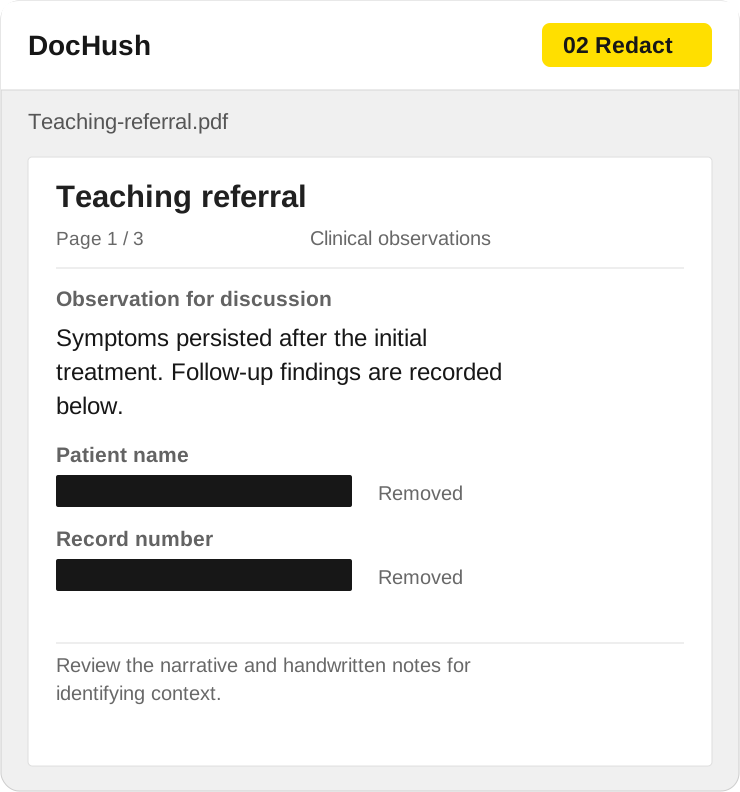
Cover both patient identifiers, then read the clinical passage to check that the teaching point is intact.
Give the output a neutral name such as referral-teaching-case-04.pdf. Keep any link between that case number and the patient outside the handout’s distribution folder.
5. Check privacy and clinical meaning before sharing
In Verify, review the export checks and their coverage. The intended checks include reopening every output page, checking page integrity and checking approved redaction regions. Any incomplete check needs resolution; a completed file write is not enough.
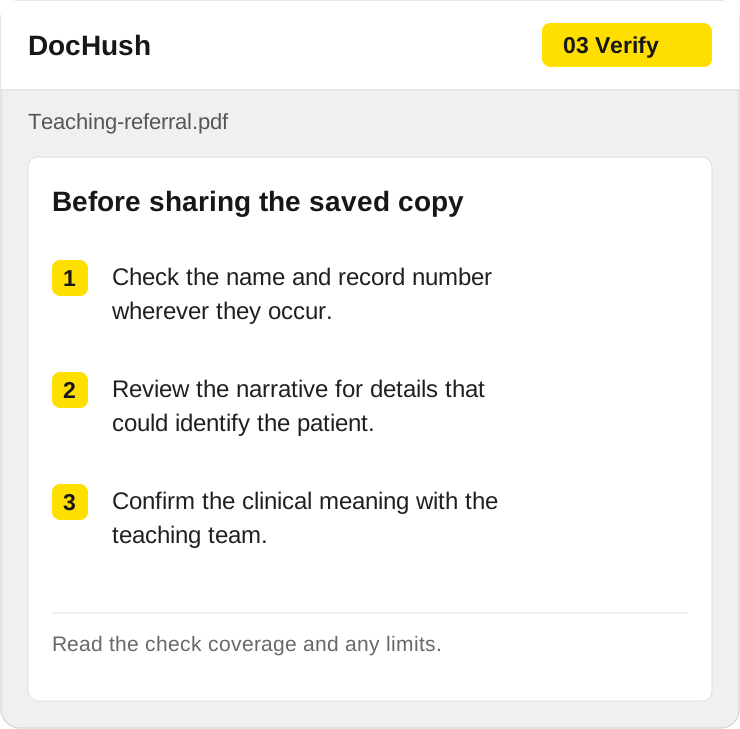
A cleared name field is only one check. Read the narrative and handwritten note in the saved teaching copy.
Have the privacy reviewer inspect all three final pages against the approved brief. Use a page-level handoff:
| Page | Privacy review | Teaching review |
|---|---|---|
| 1 — cover | Patient label, record number and phone number removed | Neutral case reference and intended audience are correct |
| 2 — summary | Repeated identifiers and any identifying narrative resolved | Medication, dose, units, negations and sequence remain clear |
| 3 — scanned note | Handwritten contact and page margins checked visually | The relevant observation remains complete and legible |
If an identifier remains visible, return to the working copy, adjust the region and export again. If a mark hides a dose, unit or negation, correct it only within the approved privacy brief; otherwise hold that page for a new decision. Repeat both reviews on the replacement file. An unreadable scan needs a better source or a different teaching example, not a guessed transcription.
Where your organization’s policy permits, use the free PDF redaction checker to inspect the saved file’s text and hidden data locally in the browser. It does not upload the PDF, apply redactions, perform OCR or read embedded attachment contents. No text matches on an image-only page do not establish that patient information is absent; read each image. The PDF checking guide explains how to combine these checks.
6. Review the material learners will actually receive
If the pages go into a slide deck or handout, inspect that final file too. Check cropped images, speaker notes, filenames and any copied narrative against the same privacy brief. Keep the original packet and the patient-to-case lookup outside the distribution folder. Obtain the team’s release approval for the intended audience before sharing.