
When a PDF name will not highlight, the page may be a scan. To redact a scanned page, remove the sensitive pixels and any matching text in an OCR layer, then inspect the saved output. OCR helps locate candidates; it does not replace reading the page or deciding what the recipient should receive.
On a scanned page, removing text objects alone leaves the visible pixels unchanged. Check the image and any OCR layer.
How to tell whether a PDF is scanned
Start with these clues on each page; no single one proves how the PDF stores its content.
- Select and copy. Drag across a line and paste it into a plain-text editor. Accurate text indicates a usable text layer, which may have been added by OCR. No selection or garbled text needs further inspection.
- Search. Try several clearly visible words. Misses show that this search is not a reliable way to find those words; they do not establish that the page has no text objects.
- Zoom. Pixelated letters, skew, speckles and page-edge shadows suggest a scanned image. They are clues to review alongside the selection and search results.
PDF permissions and character encoding can also interfere with text extraction, as the Apache PDFBox FAQ explains. If the result is unclear, try an authorized reader that can inspect the page content, or obtain a readable source copy. Treat the page as needing visual review while the text-layer status remains unresolved.
Mixed documents can contain text pages, scanned attachments and pages with both. A scanned image may also have an invisible OCR text layer: search can work while the same words remain in the picture. Check both parts, page by page.
Decide what must survive the export
List the fields to remove and those the recipient needs. Keep the original separately. Before using an image-only workflow such as DocHush’s, confirm that the recipient can accept output without searchable text, the original accessibility structure, working links, interactive fields or digital signatures. If those features are required, choose an appropriate workflow before marking the file. Also check the current file requirements for input limits and unsupported PDFs.
Why scans change the job
Working on a scan fails in two opposite ways.
The first is silence. Search finds nothing, so an identifier on page seven is missed unless someone reads page seven. The second is misplaced confidence. OCR may confuse similar characters, split words or miss faint text, so a hit still needs checking. Tesseract’s documentation recommends images of at least 300 dpi and explains problems caused by noise, uneven backgrounds and skew. These are input-quality guidelines, not an accuracy guarantee. Tesseract — improving the quality of the output
Tools that place marks by text position on a scan depend on the recognized geometry lining up with the image. A mark computed from a misread or shifted word can cover the wrong pixels, which is why every automatic mark on a scan needs a visual check.
One scanned field, two places to check
Suppose the name Casey Roe must be removed from a scanned form. Check both what the page shows and any text stored with it:
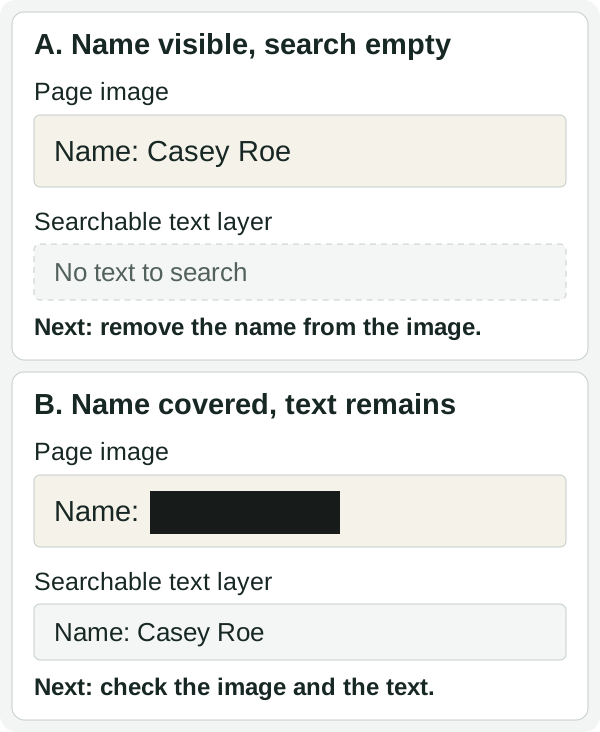
Check the visible page and its text layer separately. An empty search does not clear the image, and a black area does not clear the text.
| What you observe | What still needs attention |
|---|---|
| The name is readable in the image, but searching finds nothing. | Find and redact the image region. The empty search may simply mean there is no usable OCR text; it says nothing about whether the name is visible. |
| The name is covered in the image, but searching or copying returns it. | Remove the retained text as well as the image content. Verify that the saved file replaces the sensitive pixels rather than keeping them beneath a shape, and repeat the text checks. |
Both situations need work before the name can be considered removed. If the page contains no searchable text after export, review the image anyway. The browser checker does not run OCR, so it cannot tell you whether a name remains in those pixels.
Use OCR to find candidates, then check the image
Treat recognition as a way to find places to look, not as a judge of what is there.
If you control the scan, aim for a straight, legible image at 300 dpi or higher. Preserve colour when it carries information the recipient needs. Work on a copy when adjusting contrast, deskewing or trimming empty scanner borders, and check that faint text and page edges remain intact. Resizing a blurry image cannot recover missing detail; request a clearer source when necessary.
Run recognition, then search the recognized text for expected names and numbers. Compare each hit with the image before marking it. If OCR returns little or garbled text, confirm the language and page orientation where your tool allows, then retry on a better source or mark the regions manually. An empty OCR result does not clear the page.
Then read the whole page, including handwriting, stamps, signatures, small print, diagram labels and text in photographs. Review barcodes and QR codes as possible copies of an identifier. If a code carries information that must be removed, include it in the redaction; do not assume hiding the printed value also changes the code.
Mark regions on the page image, not just words
Mark an image region for removal with a margin around the complete field, including descenders and punctuation. Include a label when it reveals information that must also be removed. The mark identifies what the apply step must replace; drawing it alone is not a completed redaction.
Apply the same review to photographs, signature images, named logos and stamps, marking any that your sharing decision requires you to remove. Check repeated headers and footers on every page. Review scanned enclosures too; embedded files need their own inspection rather than a mark on the parent page. Release packets often mix scanned and text pages; the public-records release guide reconciles each saved file with its release decision.
Export and verify
Apply the marks with a tool that removes image content. The output must replace the covered pixels rather than retain them beneath a shape, and it must remove any OCR text that contains the redacted values. A new image-only PDF can meet that requirement when it is built from the already-redacted images without the original objects or OCR layer. Inspect metadata and attachment listings too; page-image edits do not address those automatically. Save a new copy and keep the original separately.
Open the saved copy in a different viewer. Zoom into every intended removal, then read the unmarked areas for missed occurrences. Check page count, order, orientation and the legibility of retained fields. Search and copy around the marks to look for remaining text, but do not interpret an empty result as proof of removal. The ICO’s technical example demonstrates the underlying problem: a black highlight survived PDF export while the text could still be copied. ICO — How to disclose information safely, paragraphs 58–65
The free PDF redaction checker can supplement that review by looking for text left in an existing OCR layer and hidden data. It does not run OCR or read the image pixels. An image-only page therefore still needs a visual check of every intended removal, even when the checker finds no matching text.
| Saved-file result | Next step |
|---|---|
| Part of the name, number or code remains visible. | Return to the working copy, adjust the region and export again. Check other occurrences as well as the corrected page. |
| The page looks covered, but search or copy returns a value that must be removed. | Correct the retained text layer or use a suitable rebuild workflow, then repeat both image and text checks on the new output. |
| A check could not run, or a page is unreadable. | Read the error and obtain a supported, readable copy or use an appropriate inspection method. Keep the file pending until the necessary review can be completed. |
| Required content was lost or became illegible. | Revise the marks or output settings and repeat the review. A successful removal still needs a useful deliverable. |
Record the final file, pages reviewed, tools, date and any unresolved coverage. See checking a redacted PDF for hidden-data checks and interpretation of the report.
Where DocHush fits
The DocHush workflow uses local OCR on scanned and mixed pages. Recognition runs on your computer and feeds candidates into the same review as pattern and model detections. Review each candidate against the page image, keep information the recipient needs, and add manual regions for anything detection missed. Read every page, including handwriting, blurred areas and margins; do not rely on recognition to identify everything that needs attention.
Export rebuilds each page as an image-only PDF with the approved regions burned in and no original text layer carried over. Verify reopens the output and checks structure, page consistency and the regions you approved within its stated scope. It does not decide whether an unmarked name should have been removed. DocHush 1.0 is designed for English documents, and document processing works while disconnected.
Frequently asked questions
Will OCR find everything?
No. Recognition misreads similar characters, splits words and skips faint or handwritten text. Use its results as candidates and read the page, especially margins, stamps, signatures and images.
Do I need to OCR before redacting?
Not necessarily. You can mark regions directly on the image. Recognition helps you locate repeated identifiers and text you might overlook. If you run it, make sure the saved output does not keep a text layer that still contains the removed words.
Does redacting a scan remove the hidden OCR text?
Only if the tool removes the corresponding OCR text or discards that layer when rebuilding the page. A search hit can expose a failure; no hit alone cannot establish that all text and image copies are gone.