
To redact a contract for external review, agree what the reviewer needs, mark only the approved exclusions, export a separate PDF and check both the removals and the surviving clauses. Keep the clause numbers, definitions and cross-references readable; remove the personal contact details, bank instructions and signature fields that the review does not need.
The DocHush workflow below follows that task locally. In the example, an outside specialist needs to review the liability clauses in a services agreement whose PDF also contains a client’s personal email, bank instructions and a signed schedule. The specialist needs enough of the agreement to give useful advice, without receiving every detail in the matter file. This guide covers an approved commercial review copy; court filings and litigation disclosure have their own requirements.
1. Decide what the contract reviewer needs
Start with the question the specialist has been asked to answer. In this fictional six-page agreement, the matter owner approves the following brief: “Review clauses 8–12 and Schedule B for the liability assessment. Keep the business names, definitions and cross-references. Remove personal contact details, bank instructions and the specified signature fields.”
That brief gives the person preparing the copy something concrete to review against.
| Location | What the specialist needs | What the brief excludes |
|---|---|---|
| Page 1 | Business names and effective date | Nothing on this page |
| Page 2 | The notices clause, liability cap and clause numbers | A personal email address |
| Page 3 | Clauses 9–12 and their numbering | Nothing in those provisions |
| Page 4 | Supporting definitions and cross-references | Nothing in those provisions |
| Page 5 | Schedule B and its payment timetable | Bank account and personal payment contact |
| Page 6 | A clear indication that this is a review copy | The specified signature images and printed names |
A different assignment may require the signatory’s identity or the payment account. The matter owner must make that decision. Detecting a name cannot establish privilege, authorize disclosure or determine whether a commercial term belongs in the review copy.
Agree on the delivery format now. The image-only route used here does not retain searchable text, form fields, links, accessibility structure or digital signatures. If the specialist needs searchable clauses, screen-reader access or original-signature validation, arrange an approved format that meets that need before editing.
2. Prepare a local working copy
If client documents cannot be uploaded to a processing service, that restriction shapes the whole task. DocHush’s design puts document processing on the local computer, including detection, review and output checks. Processing works while disconnected; signing in, buying pages and updates need an internet connection.
Check the current file requirements before opening the agreement. If a signed or protected original is outside that scope, obtain an authorized working copy; a visible signature image and a digital signature are different things.
Use the firm’s approved storage location for the working files. Keep the original agreement separately, particularly if it is digitally signed. Local processing still requires care with synchronized folders, device access and the channel used to send the finished copy.
For US practitioners, the commentary to ABA Model Rule 1.6 discusses reasonable precautions against unauthorized access and disclosure, with the sensitivity of the information among the relevant factors. The rules adopted in the applicable jurisdiction remain the reference for the matter. ABA commentary, paragraphs 18–19
3. Review each suggested removal in context
Open External-review-agreement.pdf and start Scan to bring possible sensitive details forward. In Review, select alex@cedar.example in the notices clause. Compare its position with the brief and accept it for removal. The document above keeps the liability cap visible beside the selected email: the reviewer needs that clause to give their advice.
Continue to the payment schedule and review the banking fields, then inspect the repeated contact in the footer. Accept or reject each candidate against the same disclosure brief. Add a manual mark for an approved removal that detection did not suggest.
Read the surrounding clause before accepting a mark. A number may be an account reference or the liability cap the specialist needs to assess. A business name may need to remain readable every time it appears. Removing all matches without reading them can make the copy unusable.
Include the schedules, exhibits and scanned signature page in the review. Automatic candidates do not replace a page-by-page inspection: handwriting, faint scans and details embedded in images need particular attention. The design includes manual marking so the reviewer can cover a signature image or other approved region directly.
4. Save a separate redacted contract
Move to Redact once the selected regions match the brief. On page 2, check the whole personal email address is inside the removal while the liability cap remains readable. Repeat that check for the banking fields and specified signature regions on the later pages.
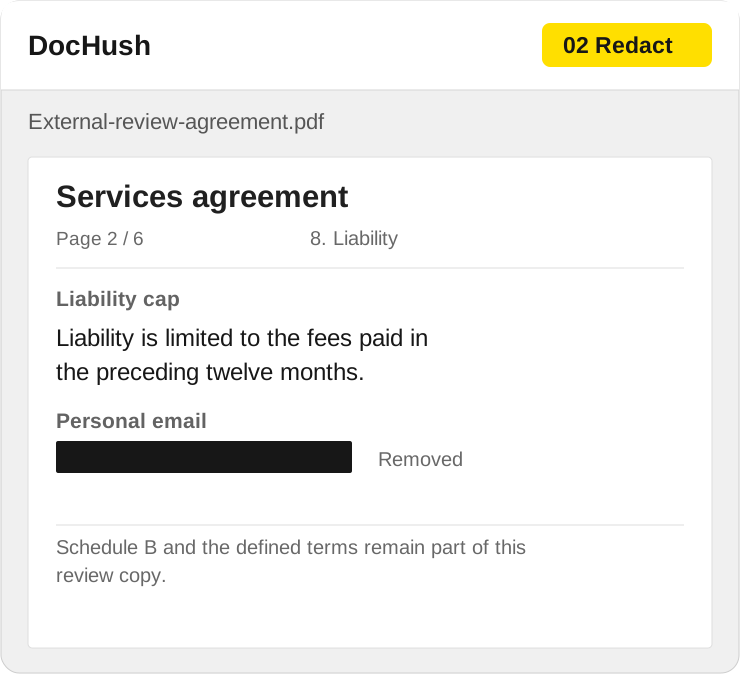
Remove the contact detail without hiding the clause the specialist needs to assess.
DocHush’s image-only export workflow applies the marks to rendered page images and builds a separate PDF. The outgoing copy does not carry over the original text layer, comments or embedded attachments. Save it as agreement-review-copy-v3.pdf, keeping the original and the internal disclosure brief in the matter file.
Keep a separately approved exhibit or attachment on the delivery list if the specialist needs it. Rebuilding the agreement pages does not prepare an embedded file for sharing; that file needs its own review.
5. Check removals, clauses and all six pages
Use Verify to review the saved output and read the scope of its checks. Reopen the PDF in a second viewer and compare it with the approved brief. Resolve any incomplete check before sharing.
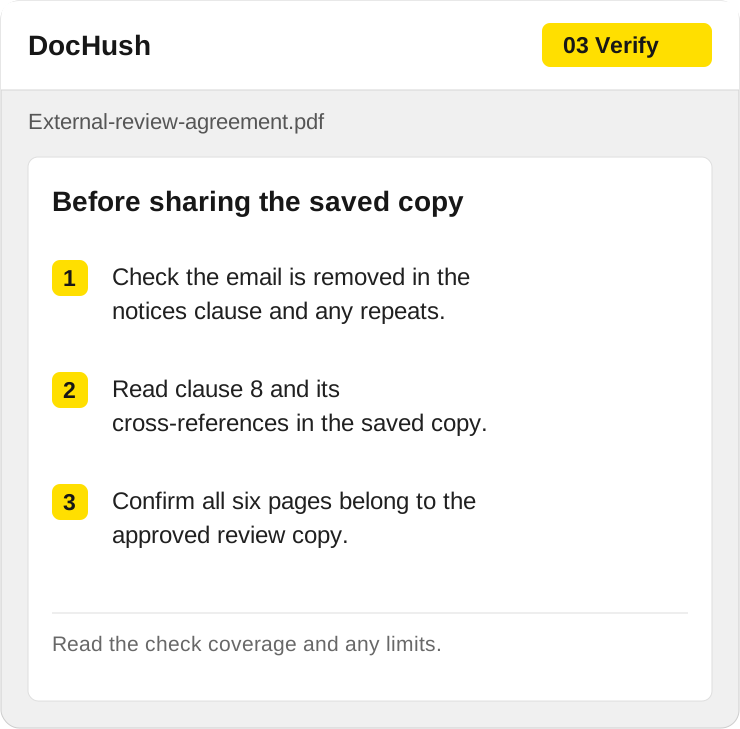
Review what remains as carefully as what was removed: clause numbers, definitions and schedules must still connect.
For the six-page example, the final human review should answer these questions:
- Are the email, banking fields and approved signature details removed everywhere the brief requires?
- Can the specialist still read clauses 8–12, follow their definitions and use Schedule B?
- Are all six pages present, legible and in the right order, including the approved signature-page copy?
- Does the outgoing folder contain only the approved copy and attachments, with the correct recipient and version?
If a contact remains readable or a mark covers a definition, return to the working copy, correct the region and export again. Recheck the affected passage, its repeated occurrences and the page count in the new saved file. Replace the rejected copy in the outgoing folder so it cannot be sent by mistake.
Use the free PDF redaction checker for an additional check of remaining text and hidden data in the saved file. It runs in your browser and does not upload the PDF. It does not apply redactions, perform OCR or read embedded attachment contents; an image-only file with no text matches still needs visual review. The guide to checking a redacted PDF explains the checks and their limits.
Check the delivery folder one last time, then send the approved review copy through the agreed channel. The specialist should receive the clauses and context needed for the assignment, with the excluded matter details removed.